The modern Screenshot Tool for Linux Mint
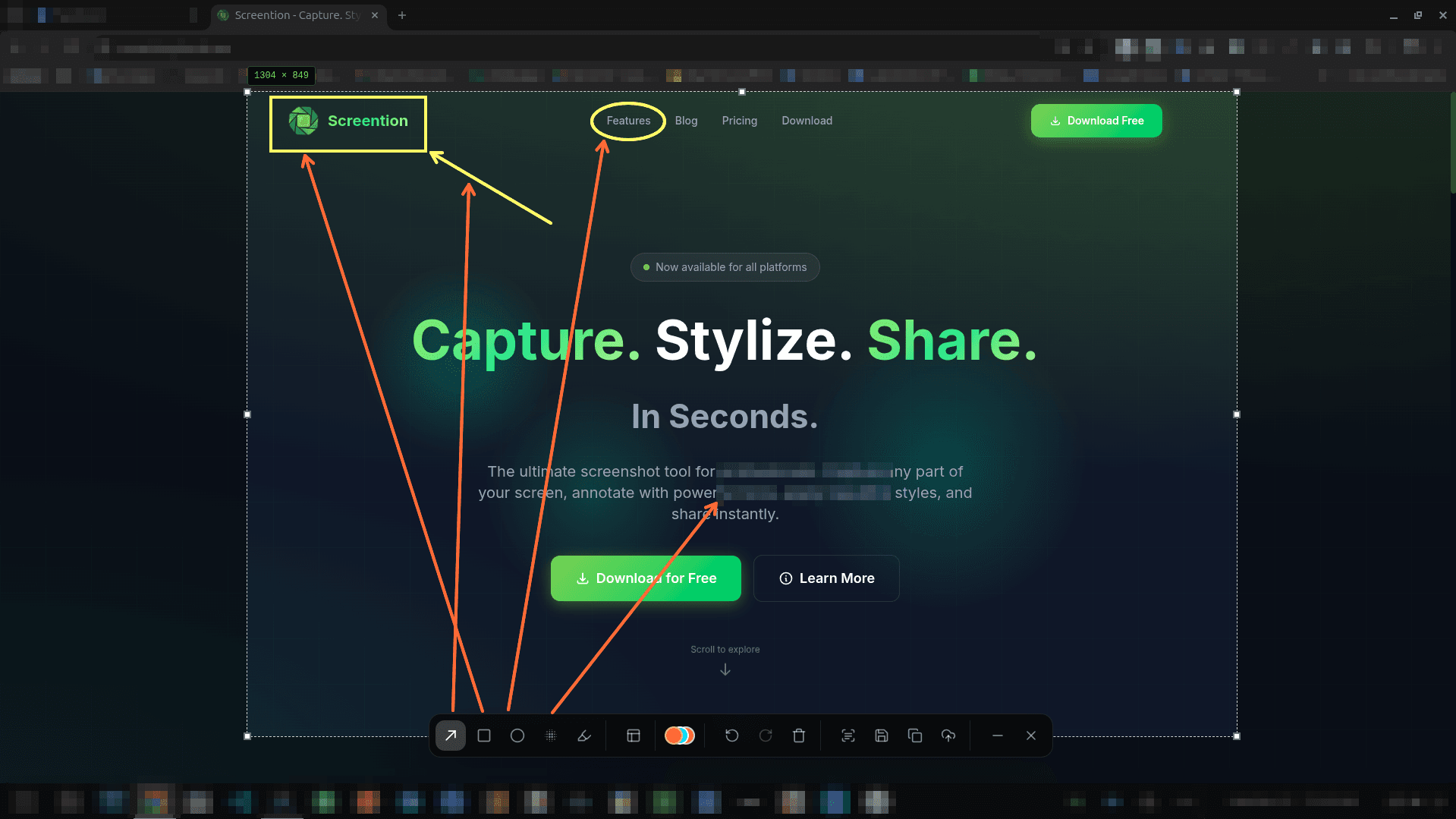
Upgrade your Linux Mint desktop. Capture regions with pixel accuracy, draw clean arrows and highlights, blur sensitive credentials, and extract text via offline OCR — all in one native app.
$ curl -fsSL https://screention.gkernel.com/install.sh | bashAutomatically detects CPU (amd64 / arm64), fetches the latest .deb, and configures shortcuts.
Everything you need to capture and communicate
No external image editors needed. Annotate, redact, and copy in one fluid motion.
Instant Region Snip
Select any desktop window or region with pixel precision and live width/height dimension readouts.
Arrows, Boxes & Pen
Draw clean callout arrows, highlight sentences, and box important details in 12 curated professional colors.
Privacy Blur & Pixelate
Redact passwords, email addresses, and confidential terminal text before sharing screenshots.
Offline OCR to Clipboard
Snip non-copyable dialogs, error messages, or documentation and extract clean text straight to your clipboard.
Mint Tray Integration
Sits docked in your Linux Mint system tray. View past captures anytime in the built-in Smart Gallery.
Zero Cloud Telemetry
Everything runs locally on your machine. No accounts, no data harvesting, and no mandatory cloud uploads.
Smooth integration with Cinnamon Desktop
Screention docks unobtrusively in your Linux Mint panel tray. Set your shortcut once, and capture anytime with instant overlay response.
Frequently asked questions
Why upgrade from Linux Mint's default screenshot tool?
Linux Mint includes a basic screenshot app, but it lacks essential workflow features: you cannot draw arrows, add rectangles, highlight text, blur sensitive information, or extract text with OCR. To edit a capture, you have to save the image and open an external editor like Pix or GIMP. Screention handles capture, editing, and copying in a single instant step.
Does Screention work with the Cinnamon desktop?
Yes. Screention integrates seamlessly with Cinnamon, MATE, and XFCE editions of Linux Mint. It docks into your system tray and responds to custom global hotkeys.
How do I install Screention on Linux Mint?
Because Linux Mint is Debian/Ubuntu-based, you can install Screention with our 1-line script: curl -fsSL https://screention.gkernel.com/install.sh | bash, or download the official .deb package and double-click to install it with GDebi or dpkg.
Can I bind Screention to the PrintScreen key in Linux Mint?
Yes. Open Mint Menu → Keyboard → Shortcuts → Custom Shortcuts. Click 'Add custom shortcut', name it Screention, set the command to screention, and assign it to PrintScreen or Ctrl+Alt+A.
Is Screention lightweight and private?
Yes. Screention runs with minimal system overhead, and all captures, OCR, and gallery histories remain 100% on your local Mint machine with no accounts or external tracking.