The modern Snipping Tool for Ubuntu
Miss the Windows Snipping Tool workflow? Screention brings instant region snips, inline arrows, highlighters, privacy blur, and offline OCR to Ubuntu 24.04 & 22.04 LTS. Fast, native, and free.
$ curl -fsSL https://screention.gkernel.com/install.sh | bashAutomatically detects CPU (amd64 / arm64), fetches the latest .deb, and configures shortcuts.
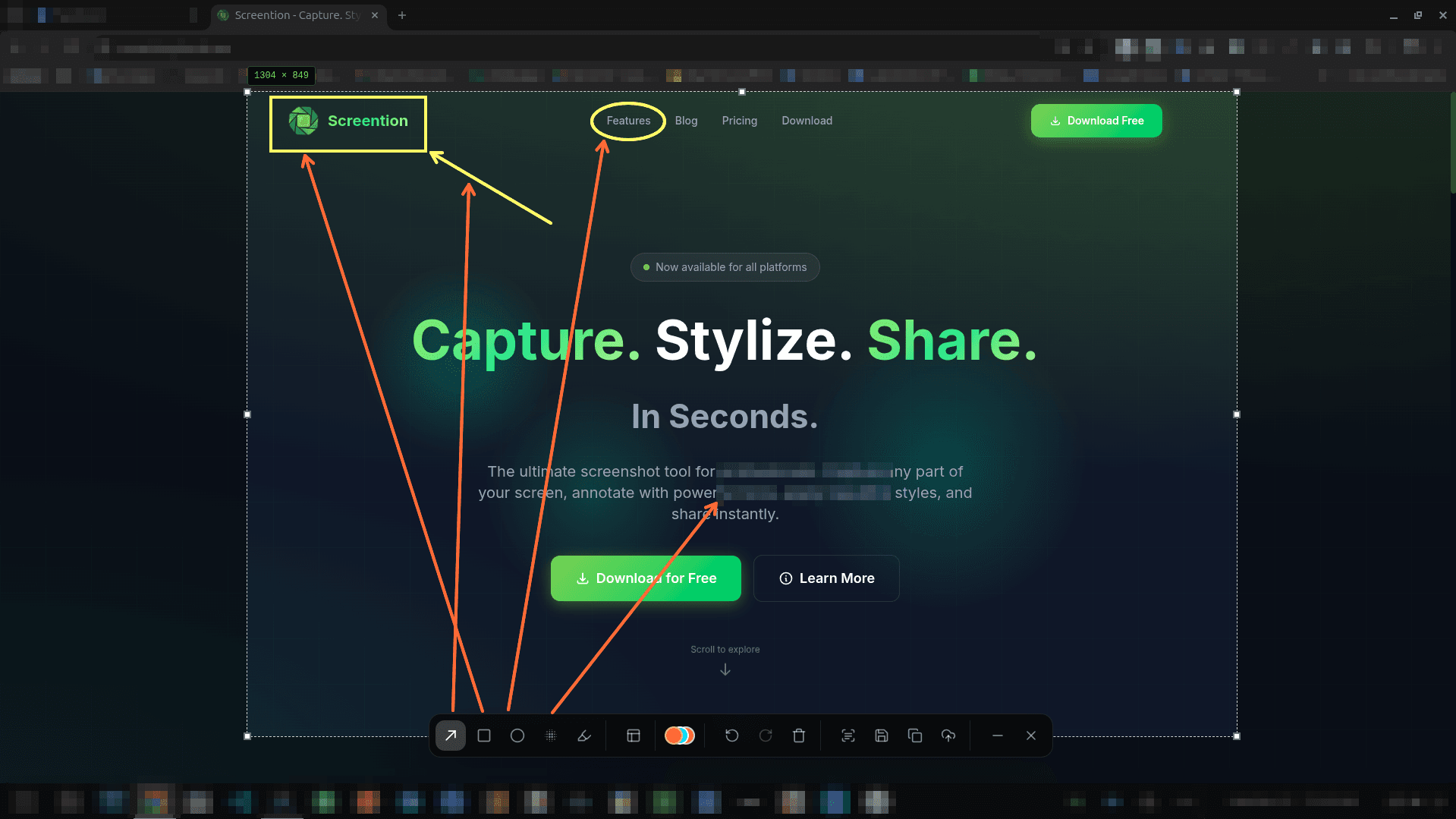
Why Ubuntu users switch to Screention
Ubuntu's default screenshot tool can capture your screen, but it forces you to open heavy external image editors just to draw a quick arrow or blur an API key. Screention does it in one step.
Everything you need to snip, mark up & share
Designed specifically for speed. Sits in your system tray and triggers via global hotkeys.
Instant Region Snip
Press Ctrl+Alt+A or PrintScreen, drag over any window or region, and refine your selection with keyboard arrow keys.
Arrows, Shapes & Pen
Guide the viewer's attention immediately. Draw crisp arrows, highlight key text, and box important UI elements in 12 vibrant colors.
Redact Sensitive Data
Never leak tokens, passwords, or personal credentials. Apply instant Gaussian blur or pixelation before copying or saving.
Offline OCR Text Extraction
Need to copy text from an error prompt, code editor, or video? Click OCR on your snip to copy clean text straight to your clipboard.
100% Local & Private
No account, no analytics on your screenshots, and no forced cloud uploads. Your images stay on your Ubuntu filesystem.
Wayland & X11 Ready
Full compatibility with Ubuntu's default Wayland session via XDG Desktop Portal, with automatic fallback to grim on minimal compositors.
Built for Ubuntu & Debian ecosystems
Runs as a lightweight native background daemon. Docked quietly in your top bar or system tray until called.
Frequently asked questions
Is there a direct equivalent to the Windows Snipping Tool on Ubuntu?
Yes. Screention is designed to provide the instant snip-and-markup workflow Windows users are accustomed to. Press your hotkey (Ctrl+Alt+A or PrintScreen), drag to select a region, add arrows or highlights directly on the screen, and press copy to paste immediately.
Does Screention work on Ubuntu 24.04 and 22.04 LTS?
Yes. Screention natively supports both Ubuntu 24.04 LTS (Noble Numbat) and Ubuntu 22.04 LTS (Jammy Jellyfish), running seamlessly on default Wayland and X11 display sessions.
How do I install Screention on Ubuntu?
You can install Screention with our 1-line terminal command: `curl -fsSL https://screention.gkernel.com/install.sh | bash`, or download the native `.deb` package directly from our download page and install it using `sudo dpkg -i`.
Does Screention upload my screenshots to the cloud?
No. Screention is local-first and privacy-focused. All screen captures, annotations, and OCR text recognition stay 100% on your local machine. No mandatory account is required.
Can I extract text from screenshots on Ubuntu?
Yes. Screention includes a built-in offline OCR tool. Simply snip any region with text or error codes, click the OCR icon, and the recognized text is instantly copied to your clipboard.