Native Screen Capture for Ubuntu
Upgrade your Ubuntu workflow. Capture any area, annotate with arrows and highlighters, redact credentials, and extract text with offline OCR — all in one native desktop app.
$ curl -fsSL https://screention.gkernel.com/install.sh | bashAutomatically detects CPU (amd64 / arm64), fetches the latest .deb, and configures shortcuts.
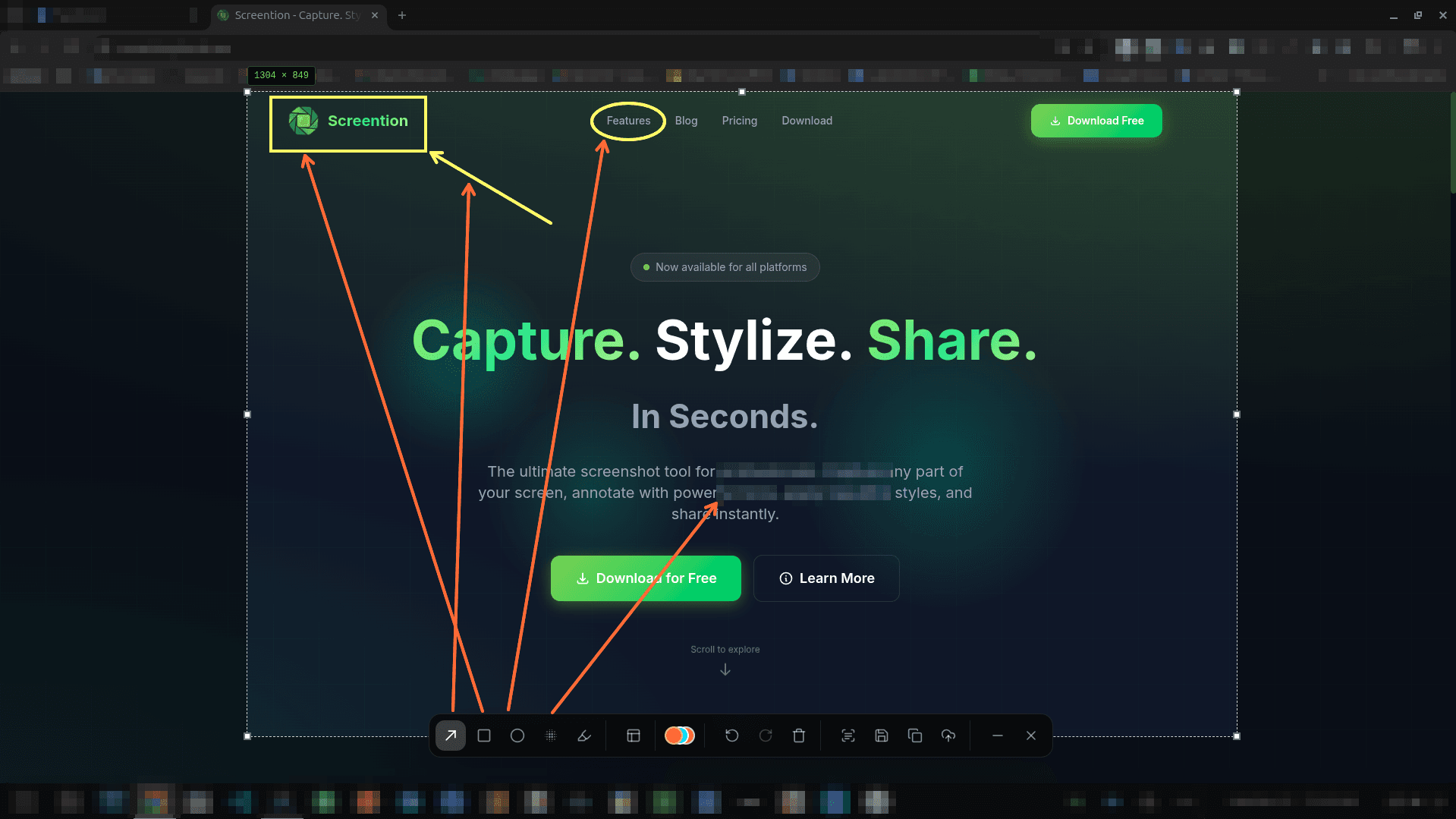
Everything you need to capture and communicate
Built specifically to solve the gaps in Ubuntu's default desktop tooling.
Pixel-Accurate Capture
Drag to frame any window, button, or region with live dimension readouts and arrow-key micro-stepping.
Instant Annotation Palette
Point out bugs or features with crisp arrows, rectangles, ellipses, and highlighters in 12 curated colors.
Privacy Redaction Brush
Blur or pixelate server IPs, passwords, and private tokens before sharing screenshots with colleagues.
Offline OCR & QR Scanner
Extract text from dialogs, terminal windows, or error messages directly to your clipboard with zero network calls.
Ubuntu Tray Integration
Sits quietly docked in your top bar system tray. Access past captures anytime from the local Smart Gallery.
Local-First Privacy
Everything runs locally on your Ubuntu machine. No forced logins, telemetry, or third-party cloud uploads.
Seamlessly integrated into GNOME & Ubuntu
Screention uses Ubuntu's native desktop portal for Wayland captures, starts minimized in your top bar, and handles custom keyboard shortcuts effortlessly.
Frequently asked questions
Why do I need a dedicated screen capture app on Ubuntu?
Ubuntu's default GNOME screenshot tool can capture basic areas, but it lacks annotation tools, arrow markers, blur redaction, and text extraction. To mark up screenshots, you must open an external editor like GIMP. Screention lets you capture, draw arrows, redact sensitive details, and copy directly to your clipboard in one fluid step.
Does Screention work on Ubuntu 24.04 and 22.04 LTS?
Yes. Screention is tested and fully supported on Ubuntu 24.04 LTS (Noble Numbat) and Ubuntu 22.04 LTS (Jammy Jellyfish). It works with both the default GNOME Wayland desktop and X11 sessions.
How do I install Screention on Ubuntu?
You can install Screention with our 1-line terminal installer: curl -fsSL https://screention.gkernel.com/install.sh | bash, or download the official .deb package and install it via sudo dpkg -i.
Can I replace the default Ubuntu PrintScreen shortcut?
Yes. In Ubuntu Settings → Keyboard → Keyboard Shortcuts → Custom Shortcuts, you can bind Screention to the PrintScreen key or any shortcut combination you prefer.
How does Wayland capture work on Ubuntu?
Screention communicates with the native XDG Desktop Portal implemented in GNOME Shell. On first capture, Ubuntu prompts you for screen permission, and subsequent captures trigger instantaneously.