Scan QR Codes from any screenshot
Screention lets you scan QR codes and barcodes directly from screenshots, offline, on all platforms. No uploading to shady websites, no app switching, no phone needed.
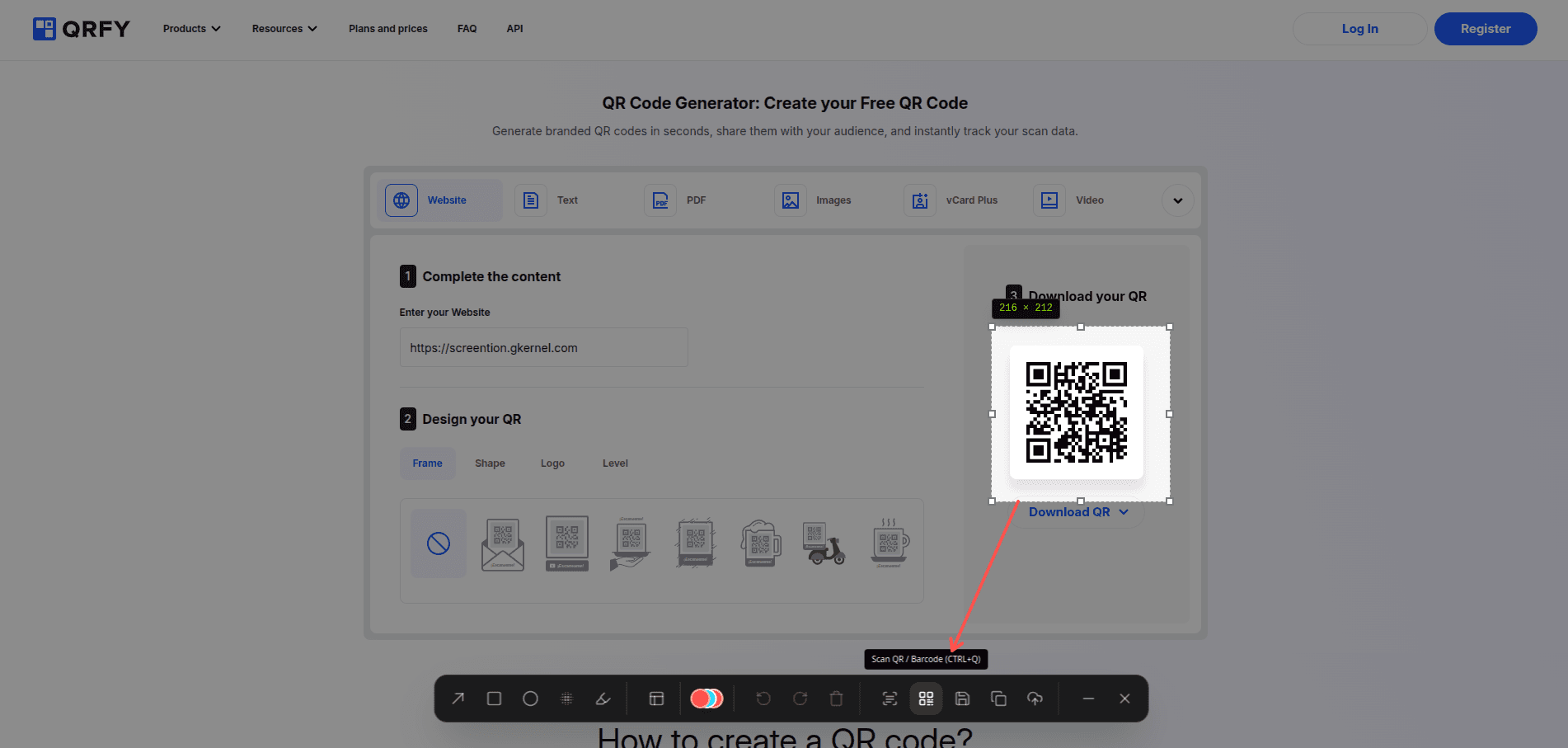
How to scan a QR code from a screenshot
Capture your screen
Press Ctrl+Alt+A or your custom hotkey to capture any region containing a QR code or barcode.
Press Ctrl+Q to scan
Hit the QR scan shortcut or click the QR button in the toolbar. Screention analyzes the captured region using multi-scale contrast and threshold analysis.
Result copied to clipboard
The decoded URL, text, or payload is instantly copied to your clipboard with an auto-dismiss confirmation.
Works with any screenshot
Whether it's a QR code from a chat message, a marketing poster, a conference badge, or a payment receipt — if you can see it on screen, Screention can scan it. Screenshots of QR codes work perfectly because QR codes retain their data in any image format.
Everything you need for QR scanning
Multi-Format Support
QR codes, Data Matrix, and common 1D barcodes (Code 128, EAN, UPC) all decoded in one click.
100% Offline Scanning
Powered by ZXing running locally. No cloud uploads, no API keys, no internet needed.
Smart Multi-Scale Analysis
Adaptive contrast enhancement and threshold processing for reliable reads even on low-quality screenshots.
Automatic Margin Trimming
Intelligent border padding detection removes excess whitespace for cleaner barcode recognition.
Instant Clipboard Copy
Decoded data auto-copies to clipboard with a visual confirmation toast. Paste anywhere immediately.
Cross-Platform Support
Same QR scanning workflow on Windows, macOS, and Linux (including Wayland). Download once, works everywhere.
Frequently asked questions
Can you scan a QR code from a screenshot?
Yes! Screention lets you scan QR codes directly from any screenshot on your screen. Simply capture the region containing the QR code, press Ctrl+Q (or Cmd+Q on macOS), and the decoded data is copied to your clipboard instantly — no phone camera needed.
Does a screenshot of a QR code work?
Absolutely. QR codes encode data in their visual pattern, which is preserved in screenshots regardless of image format (PNG, JPG, WebP). As long as the QR code is reasonably clear and not severely cropped, scanning from a screenshot works just as reliably as scanning from the original source.
How do I scan a QR code from a screenshot on Windows, Mac, or Linux?
Install Screention (free, ~8 MB), capture the screen region containing the QR code with your global hotkey, then press Ctrl+Q (or Cmd+Q on Mac). The decoded URL or text is automatically copied to your clipboard. The entire process takes about 2 seconds.
Can I scan a QR code from a screenshot on iPhone or Android?
On iPhone, you can use Live Text or Visual Look Up in the Photos app. On Android, Google Lens can scan QR codes from saved images. For desktop screenshots, Screention provides a faster, keyboard-driven workflow on Windows, macOS, and Linux.
Is Screention's QR scanner free?
Yes, completely free. Screention is 100% free with no paywalls, no subscriptions, and no feature restrictions. QR and barcode scanning are included for all users on all platforms.
Can you scan a barcode from a screenshot?
Yes. Screention supports both 2D codes (QR, Data Matrix) and common 1D barcodes (Code 128, EAN-13, UPC-A). The same Ctrl+Q shortcut works for all barcode formats.
Do I need an internet connection to scan QR codes?
No. Screention's QR and barcode scanner runs entirely on your device using the ZXing library compiled into the app. Your screenshot data never leaves your computer.