Screenshot to Text — extract text from any capture
Screention's built-in OCR engine converts screenshots to editable text instantly. Copy text from error messages, code snippets, PDFs, or any unselectable content — 100% offline, no uploads, no accounts.
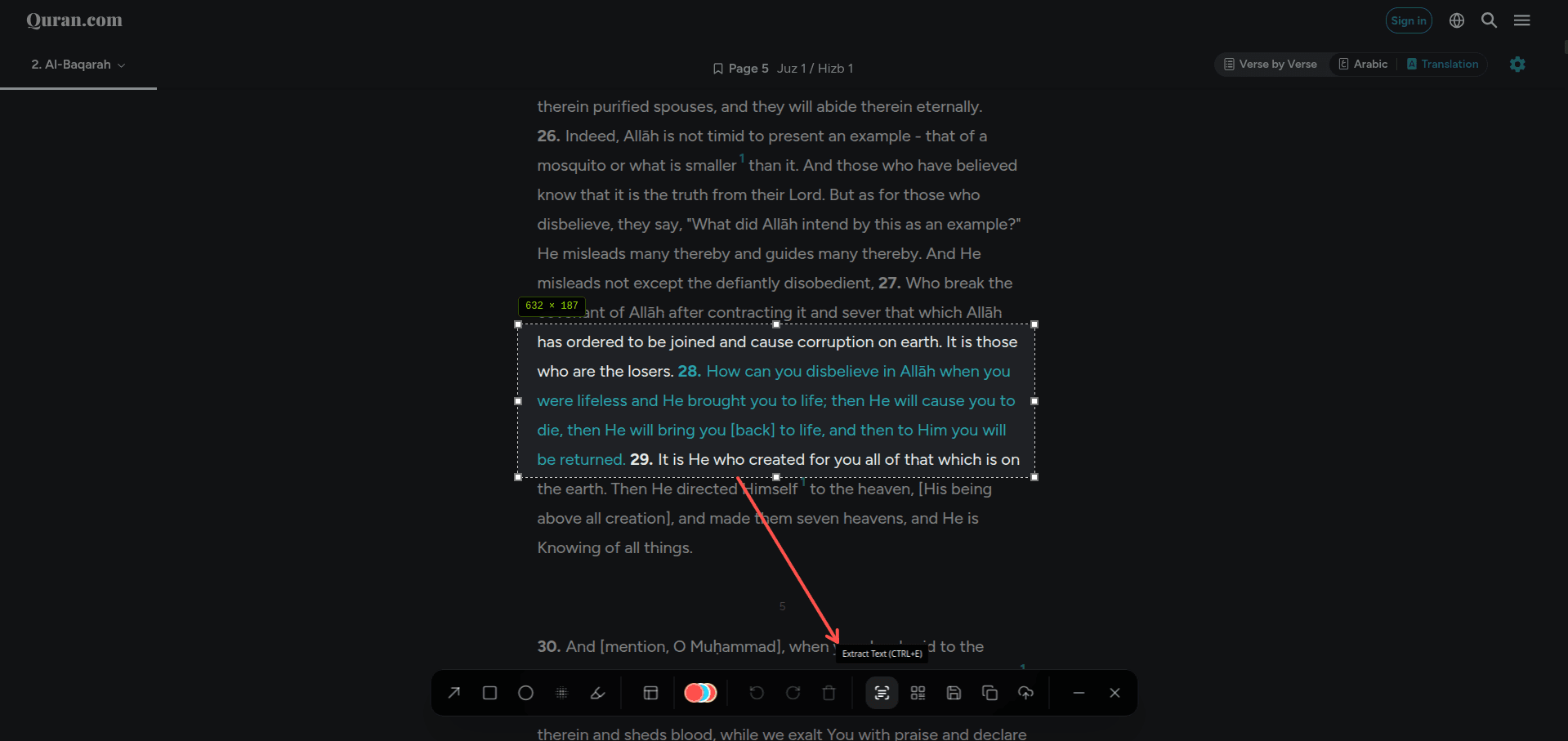
How to convert a screenshot to text
Capture any region
Use your global hotkey (Ctrl+Alt+A / Cmd+Alt+A) to select the area containing the text you want to extract.
Press Ctrl+E to extract
Hit the OCR shortcut or click the text extraction button in the toolbar. Screention's bundled Tesseract WASM engine processes the image entirely on your device.
Text copied to clipboard
The extracted text is automatically copied to your clipboard, ready to paste into any application. No retyping needed.
Why offline OCR matters
Privacy First
Your screenshots never leave your computer. Unlike online OCR tools that upload your images to remote servers, Screention processes everything locally using a bundled Tesseract WebAssembly engine. No data transmission, no cloud dependency.
Zero Latency
No waiting for uploads or server processing. Text extraction starts immediately and completes in milliseconds. Works even without an internet connection — on planes, in secure networks, or offline environments.
Stop retyping. Start extracting.
Bundled OCR Engine
Tesseract WebAssembly with English trained data included. No separate downloads, no API keys, no configuration.
Copy Any Text
Error messages, terminal output, code snippets, UI labels, PDF text, video subtitles — if you can see it, you can copy it.
Instant Clipboard
Extracted text is automatically copied to your clipboard. Just Ctrl+V to paste anywhere.
Works on Code
Optimized for monospaced fonts. Extract code from screenshots, Stack Overflow images, or documentation screenshots.
High Accuracy
Works best with high-contrast text at readable font sizes. Handles both light-on-dark and dark-on-light text.
Cross-Platform
Same OCR workflow on Windows (.exe/.msi), macOS (.dmg), and Linux (.deb/.AppImage). One tool, all platforms.
Frequently asked questions
How do I convert a screenshot to text?
With Screention, capture any screen region with your hotkey (default Ctrl+Alt+A), then press Ctrl+E (Cmd+E on Mac) to run OCR. The extracted text is automatically copied to your clipboard, ready to paste.
Can I extract text from a screenshot without uploading it?
Yes. Screention runs OCR 100% offline using a bundled Tesseract WebAssembly engine. Your screenshots never leave your computer — no cloud processing, no accounts, no internet required.
What platforms support screenshot to text?
Screention works on Windows 10/11 (.exe/.msi), macOS 11+ (universal .dmg), and Linux (.deb/.AppImage) including Ubuntu, Fedora, Arch, and more. The same OCR feature is available on all platforms.
Is the screenshot to text feature free?
Yes, completely free. Screention is 100% free with no paywalls, no subscriptions, and no feature restrictions. OCR text extraction is included for all users.
How accurate is screenshot OCR?
Screention's OCR works best with high-contrast text at readable font sizes. It handles code, terminal output, UI labels, error messages, and printed documents with high accuracy. Very small text or heavily stylized fonts may reduce accuracy.
Can I extract text from a screenshot of code?
Yes! OCR is optimized for monospaced fonts commonly used in code editors and terminals. You can extract code from tutorial screenshots, Stack Overflow images, documentation, or IDE screenshots.